Quickly connect to Claude
Requires Claude Pro, Max, Team, or Enterprise. Free with every Rentvine plan.
Give Claude live access to your portfolio, governed by the same roles and permissions your team already has. No code, no export, no waiting on a report.
Requires Claude Pro, Max, Team, or Enterprise. Free with every Rentvine plan.
How to connect.
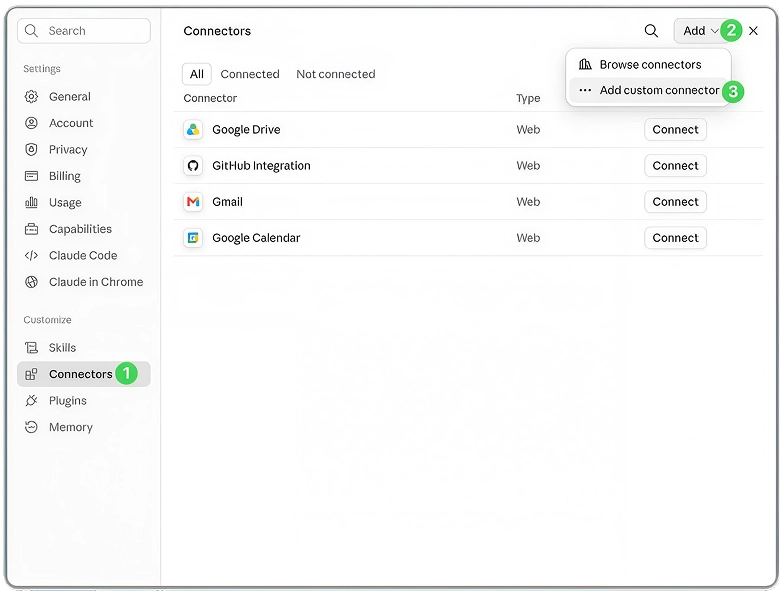
In Claude, go to Settings → Connectors, then select Add custom connector.
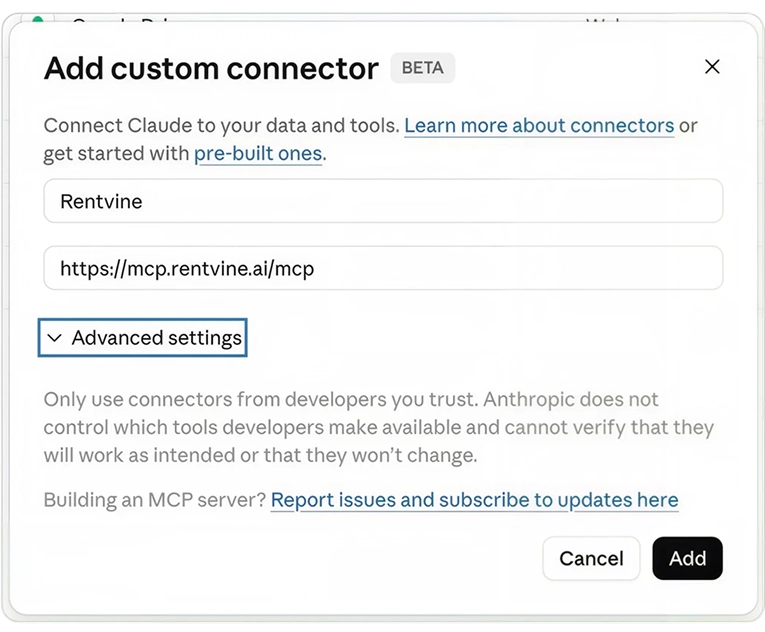
Call it “Rentvine,” then paste https://mcp.rentvine.ai/mcp into the Remote MCP server URL field.
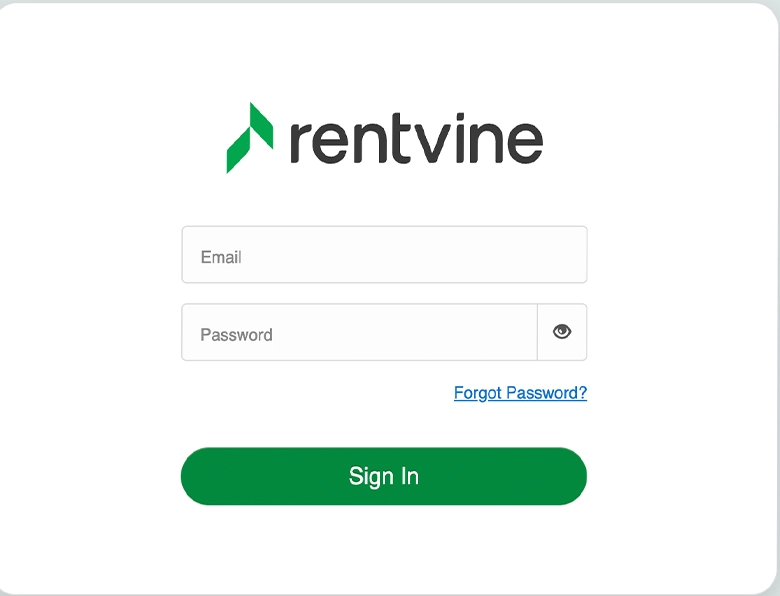
Claude will ask you to sign in. This is what keeps everything governed — Claude only ever sees what your Rentvine role already allows.
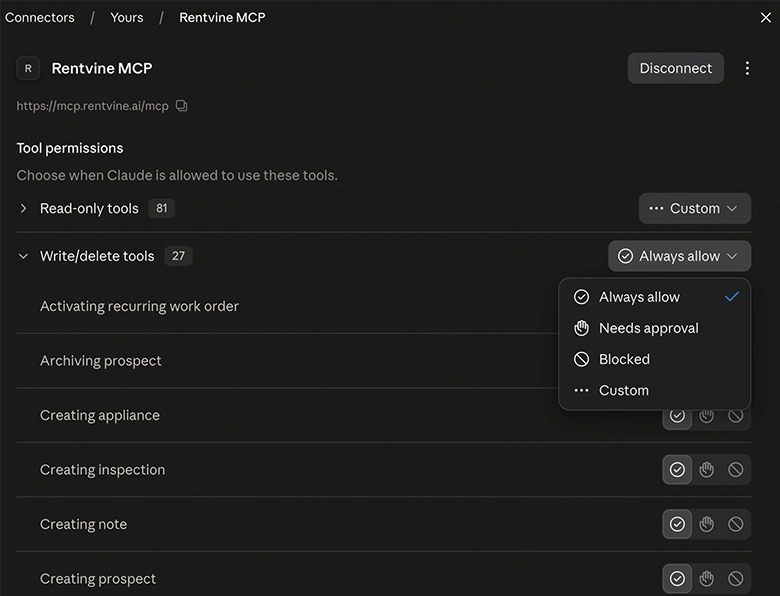
Open the new connection, select Configure, and choose Always allow for the tools you want Claude to use without asking each time.
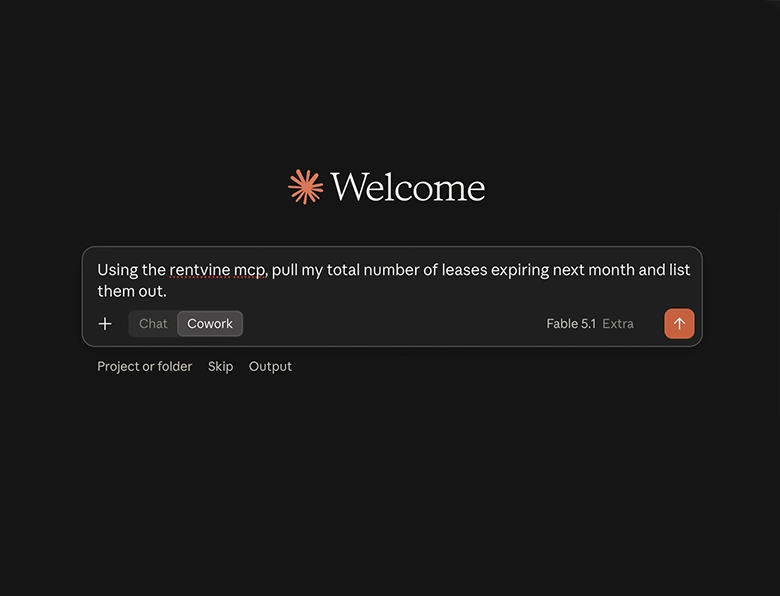
Try: “Which owners haven’t been paid this month?” or “Show me every open work order in Phoenix, grouped by vendor.”
No config files, no API keys, nothing to install. Paste one URL into ChatGPT, sign in with your Rentvine login, and start asking your portfolio anything in plain English.
One URL to paste; your Rentvine login does the rest. Full read + write needs ChatGPT Business, Enterprise, or Edu. Pro is read-only. Set up at chatgpt.com on the web. Custom plugins aren't in the mobile apps yet.
see steps to connect to ChatGPTHow to connect.
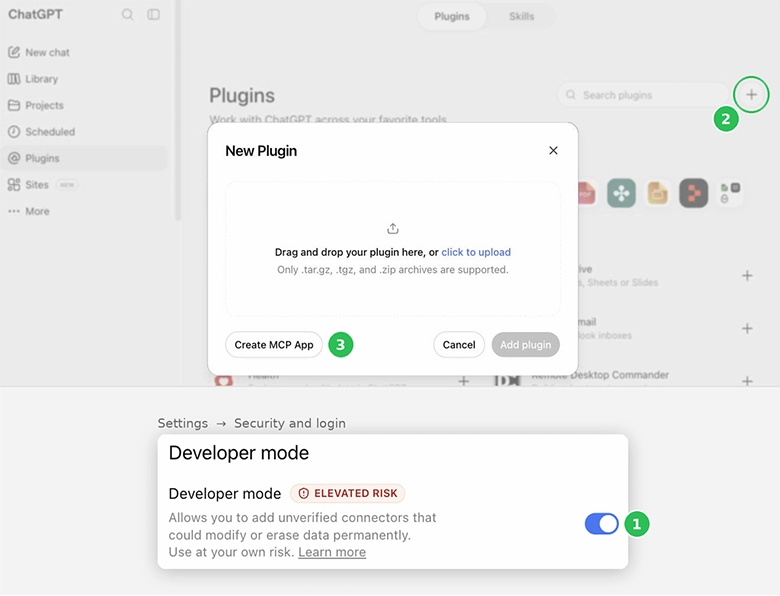
At chatgpt.com, click your name → Settings → Security and login, then switch on Developer mode.
Open Plugins in the left sidebar. The + is next to Search plugins.
In the New Plugin window, choose Create MCP App (bottom-left).
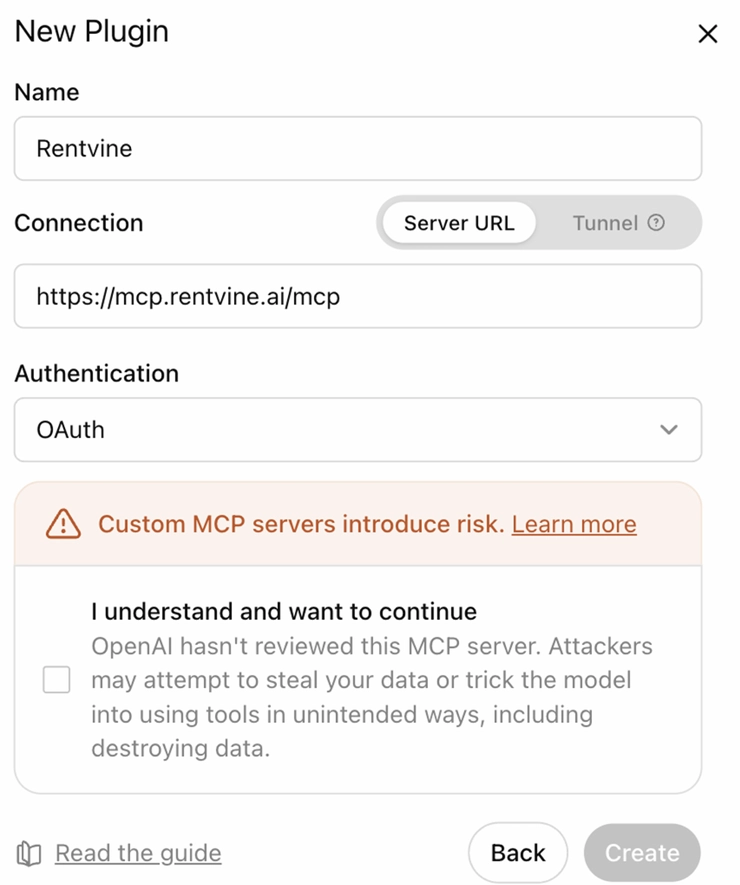
Name: Rentvine. URL: https://mcp.rentvine.ai/mcp. Keep Authentication on OAuth, tick the checkbox, then click Create.
ChatGPT sends you to a Rentvine sign-in page. Log in with your normal Rentvine credentials and approve the connection.
Start a new chat. Click + by the message box (or type @) and pick Rentvine. Then ask — no special commands needed.